
Quick Start
Add Traven to a PHP form or regular HTML page in three steps.
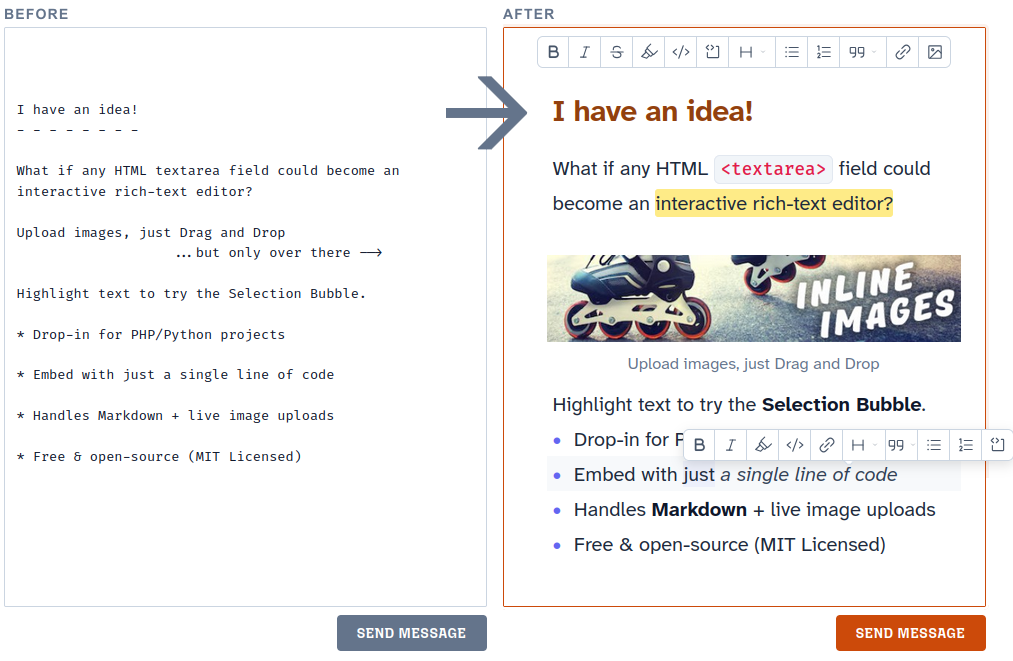
Step 1 — Replace your textarea
Inside your form, swap <textarea> for <traven-editor>. To show the editor with the default toolbar, add the toolbar attribute.
<form action="save.php" method="POST">

  <!-- Before: <textarea name="content">Write something...</textarea> -->
  <traven-editor name="content" toolbar>Write something...</traven-editor>

  <button type="submit">Save</button>
</form>
NOTE: Displaying Traven without a toolbar is supported by design. If you want a minimalist writing space without a toolbar, simply remove the
toolbarattribute from<traven-editor>. You can also customize the available actions by passing a comma-separated list of tool names (e.g.,toolbar="bold, italic, link, image").
Step 2 — Load Traven with just a single line
Add this one line before the closing </body> tag.
<script type="module" src="https://cdn.jsdelivr.net/npm/@freedomware/traven@latest/dist/traven.js"></script>
</body>
Step 3 — Read it in PHP
In save.php, or anywhere your form is handled, just read the content exactly like any other form field:
$content = $_POST['content'] ?? '';
Traven submits like a standard textarea, so nothing in your existing PHP needs to change.
What's next?
You now have a working Rich Text editor, ready to go. From here you can stack on additional attributes (like line-numbers, theme="dark", toolbar-mode="floating", vim-mode, read-only, auto-load-styles="false") or trim the toolbar button set so the toolbars show only the buttons you need, rather than the full set which is often too much and can be overwhelming for your users.
For a complete reference of every option you can put on <traven-editor>, including the full list of toolbar button keys and what each one does, check out the Cheat Sheet ...and if you want to extend the toolbar and add your own custom buttons, the dev-docs show how that is easy, too.
Ready-made configurations for blogs, CMS dashboards, documentation editors, and more: Common Configurations.